> For the complete documentation index, see [llms.txt](https://docs.cerrix.com/llms.txt). Markdown versions of documentation pages are available by appending `.md` to page URLs; this page is available as [Markdown](https://docs.cerrix.com/cerrix-documentation-nl/cerrix-functionaliteiten/getting-started.md).
# Aan de slag
Welkom bij CERRIX! Volg deze handleiding om in te loggen en vertrouwd te raken met de interface van het platform.
### Inloggen
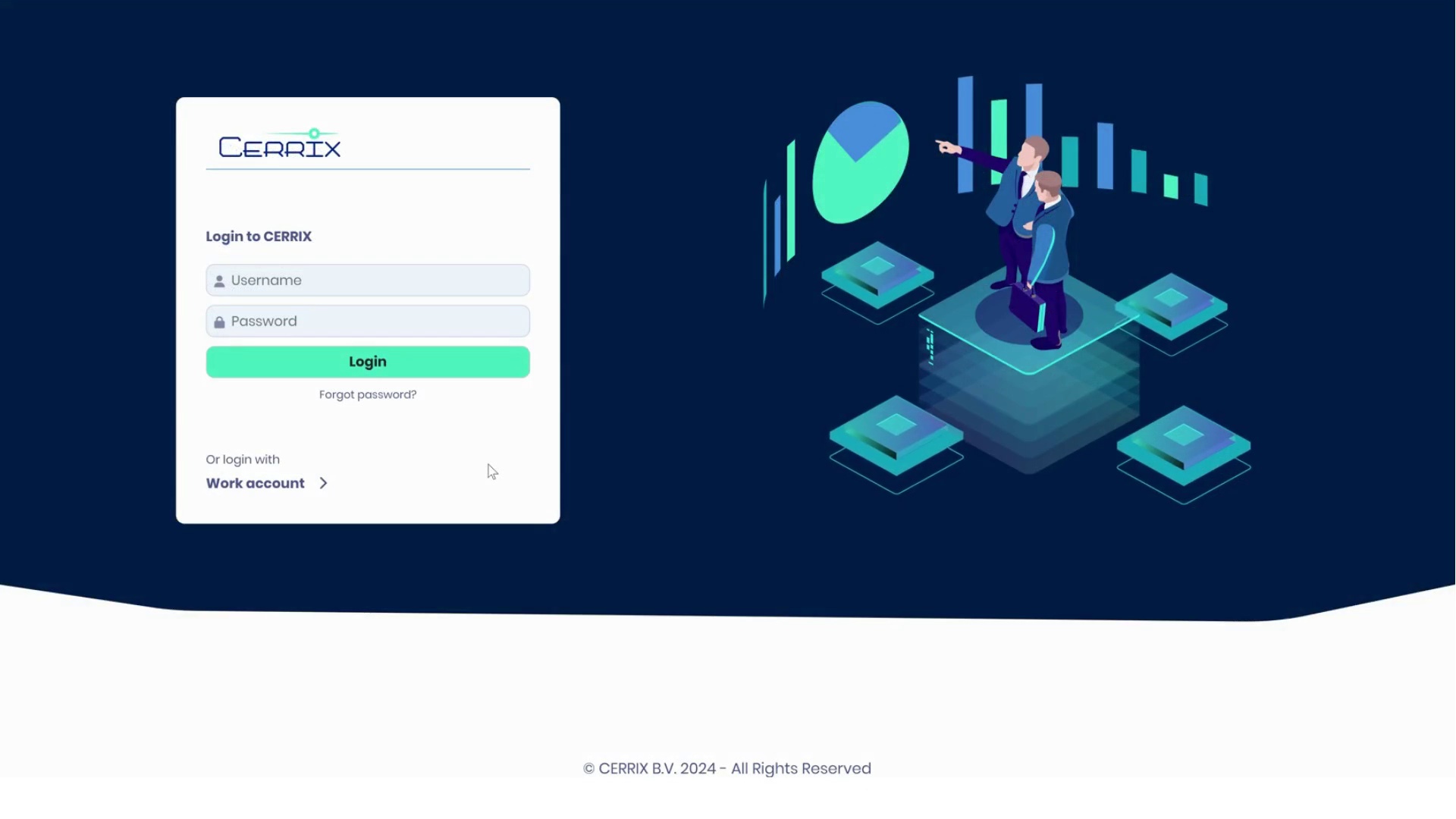
Om toegang te krijgen tot uw persoonlijke CERRIX-account:
1. Bezoek de inlogpagina die door uw functioneel manager is verstrekt.
2. Gebruik een van de volgende inlogmethoden:
* **Gebruikersnaam en wachtwoord**: Verstrekt door uw manager. Stel uw wachtwoord opnieuw in na de eerste keer inloggen.
* **Werkaccount**: Log in met uw Microsoft-werkaccount, indien van toepassing.
> **Opmerking**: Tweefactorauthenticatie via Microsoft Authenticator kan vereist zijn voor extra beveiliging.
Zodra u bent ingelogd, komt u op uw aanpasbare Dashboard terecht.
***
### Navigeren door het Dashboard
#### Belangrijkste elementen
* **Linkermenu**: Gebruik dit menu om tussen modules en instellingen te navigeren.
* **Tabbladen**: Schakel tussen eerder geopende pagina's met behulp van de tabbladen bovenaan het scherm.
* **Menu rechtsboven**:
* **Takenlijst**: Bekijk taken en verantwoordelijkheden.
* **Help**: Krijg toegang tot handleidingen en veelgestelde vragen.
* **Profiel**: Beheer uw accountgegevens en instellingen.
#### Uw Dashboard aanpassen
Uw Dashboard is volledig aanpasbaar:
* Widgets toevoegen of verwijderen.
* Herschik widgets om prioriteit te geven aan uw werkstromen.
> **Tip**: Sla uw Dashboard-instellingen op om uw voorkeursindeling snel te herstellen.
***
### Veelvoorkomende taken in alle modules
CERRIX-modules gebruiken dezelfde interactiepatronen. Door deze eenmaal te leren, werkt u overal efficiënt.
#### Nieuwe items maken
De meeste modules volgen een vergelijkbaar patroon voor het maken van nieuwe items:
1. Open de relevante Workspace
2. Klik op de knop "nieuw toevoegen" (bijv. "nieuw Risico toevoegen", "nieuwe Beheersmaatregel toevoegen")
3. Vul de vereiste velden in
4. Koppel indien nodig aan gerelateerde items
5. Klik op **opslaan**
#### Items aan elkaar koppelen
CERRIX gebruikt een consistente interface voor koppelingen binnen alle modules:
1. Open het item waarvan u wilt koppelen
2. Navigeer naar het juiste tabblad (bijv. "Gekoppelde Beheersmaatregel", "Gekoppelde Risico")
3. Klik op **Koppelingspaneel**
4. Blader door items of zoek ernaar om te koppelen
5. Sleep items naar het gekoppelde gebied of klik om te selecteren
6. Klik op **opslaan**
#### Welke items kunnen aan elkaar worden gekoppeld
Koppelingen zijn wat afzonderlijke records omzet in één verbonden beeld van uw Organisatie. Het overzicht hieronder toont welke koppelingen elk type item ondersteunt; de details van elke koppeling worden beschreven op de modulepagina's.
| Item | Kan worden gekoppeld aan |
| ------------------------- | ---------------------------------------------------------------------------------------------------------------------------------------------------------------------------------------------------- |
| Risico | Organisatie, Bedrijfsdimensies, kadersdimensies, risicocatalogus, Beheersmaatregelen, Incidenten, MoI's, processtappen |
| Beheersmaatregel | Organisatie, Bedrijfsdimensies, kadersdimensies, Beheersmaatregelcatalogus, Risico's, Incidenten, MoI's, gegevensverwerkingsrecords, processtappen |
| Incident | Organisaties, Bedrijfsdimensies, kadersdimensies, Risico's, Beheersmaatregelen, Derde partijen, MoI's |
| Verbetermaatregel (MoI) | Organisatie, Bedrijfsdimensie en het bovenliggende object waartoe het behoort: een Risico, Beheersmaatregel, Incident, Bevindingenrapport, Gegevensverwerkingsrecord, Derde partij of Auditbevinding |
| Bevindingenrapport | Organisatie, rapporttype, MoI's |
| KPI/KRI | Organisaties, Bedrijfsdimensies, risicocatalogi |
| Gegevensverwerkingsrecord | Organisatie, Bedrijfsdimensie, kaderdimensies, Risico's, Beheersmaatregelen, MoI's |
| Derde partij | Organisatie, contracten, Risico's, Beheersmaatregelen, MoI's |
| Proces | Organisatie en Bedrijfsdimensie (een proces wordt per combinatie getekend), met Risico's en Beheersmaatregelen gekoppeld aan de processtappen |
| Audit universe-object | Organisaties en Bedrijfsdimensies; audits koppelen Bevindingen, MoI's en formulieren |
Organisaties, Bedrijfsdimensies en kaderdimensies worden onderhouden in Basisgegevens en kunnen daar aan elkaar worden gekoppeld: Bedrijfsdimensies aan Organisaties en aan kaderdimensies. Zie [Basisgegevens](https://docs.cerrix.com/cerrix-functionalities/admin-settings/standing-data-organizations-and-business-dimensions).
#### Geschiedenis en Audit-trail bekijken
Elk item in CERRIX houdt een volledige geschiedenis bij:
1. Open een willekeurig item
2. Klik op de **Geschiedenis** tab
3. Bekijk alle wijzigingen met tijdstempels en gebruikersnamen
Dit Audit-trail is essentieel voor Compliance en probleemoplossing.
Leer vervolgens meer over de kernmodules van CERRIX op de [Moduleoverzicht](/cerrix-documentation-nl/cerrix-functionaliteiten/module-overview.md) pagina.
---
# Agent Instructions
This documentation is published with GitBook. GitBook is the documentation platform designed so that both humans and AI agents can read, navigate, and reason over technical content effectively. Learn more at gitbook.com.
## Querying This Documentation
If you need additional information that is not directly available in this page, you can query the documentation by asking a question.
Perform an HTTP GET request on the following URL with the `ask` and `goal` query parameters:
```
GET https://docs.cerrix.com/cerrix-documentation-nl/cerrix-functionaliteiten/getting-started.md?ask=&goal=
```
`ask` is the immediate question: it should be specific, self-contained, and written in natural language.
`goal` is what the user is ultimately trying to achieve, the reason they need the answer. Sharing it helps GitBook give you a better, more relevant answer. A goal is most helpful when it describes the outcome the user wants rather than restating the question. For example, with `ask=how do I create an API token`, a goal like `automate deployments from our CI pipeline` lets GitBook tailor the answer to that use case.
The response will contain a direct answer to the question and relevant excerpts and sources from the documentation.
Use this mechanism when the answer is not explicitly present in the current page, you need clarification or additional context, or you want to retrieve related documentation sections.